HTML user guide with real app screenshots

EHS User Guides

Role-wise web and patient app documentation covering onboarding, login, navigation, action screens, appointment booking, emergency video calls, ambulance booking, dispatch criteria, and end-to-end testing.

Role onboarding
Navigation actions
E2E test checks
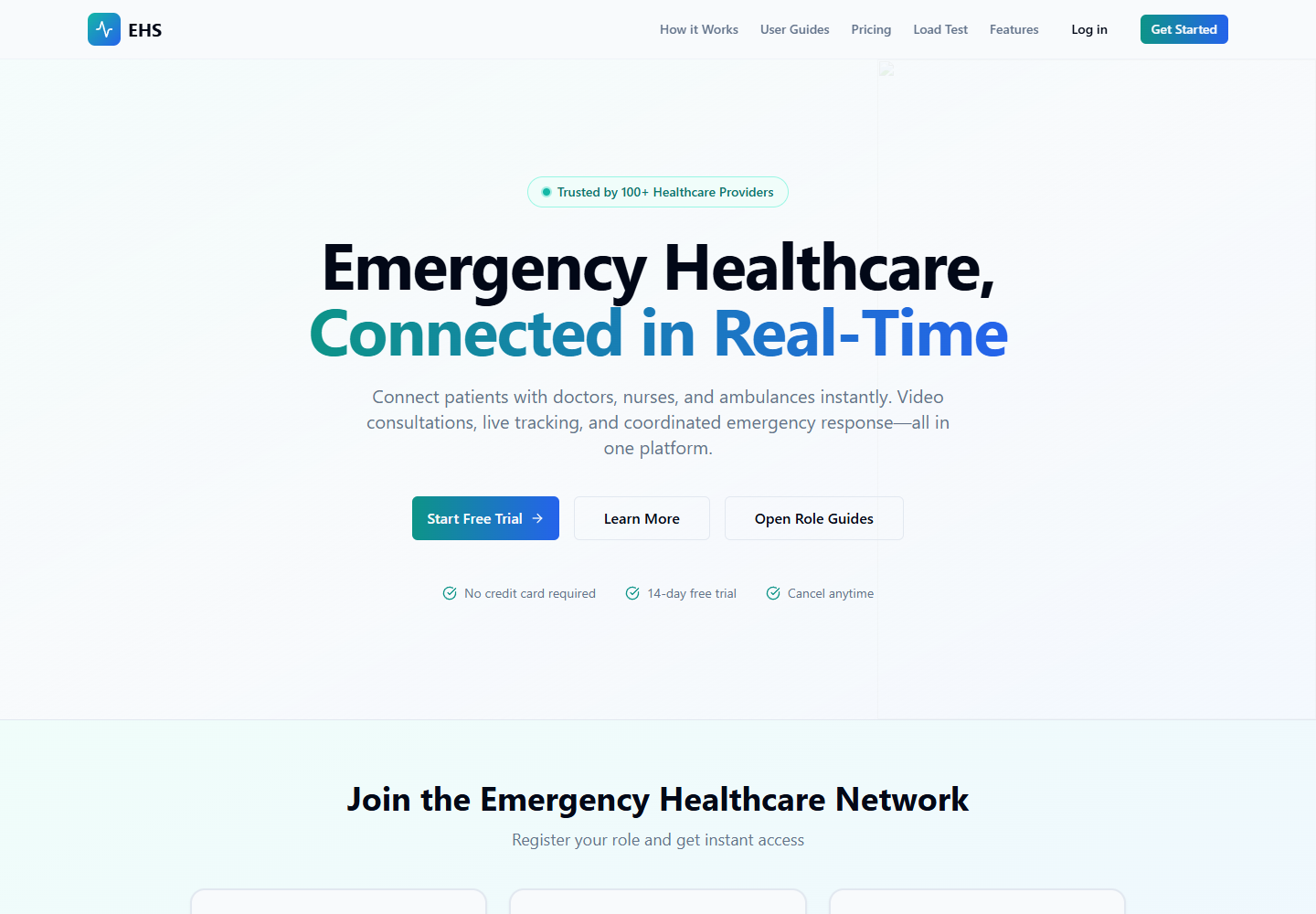
EHS landing page screenshot

Role Guides

Open each guide for login route, onboarding path, module navigation, action screens, screenshots, and test checks.

Functional Wise Flow Documentation

End-to-end flows with captured application screenshots and QA checkpoints.

Schedule Appointment Flow

End-to-end appointment flow from patient service selection through nurse assignment and doctor consultation.
#schedule-appointment
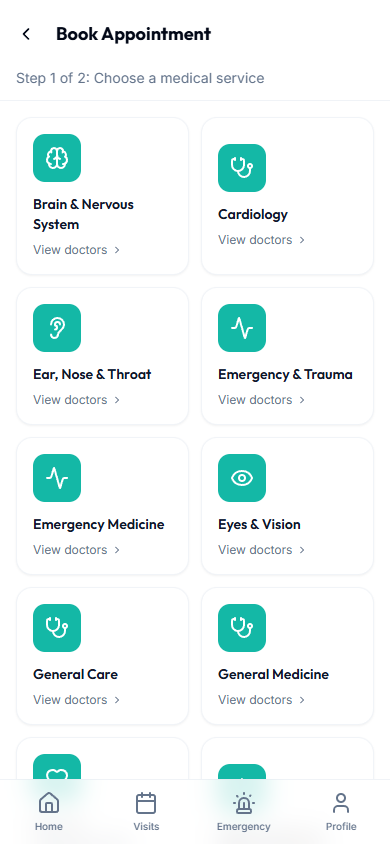
Patient appointment booking service selection
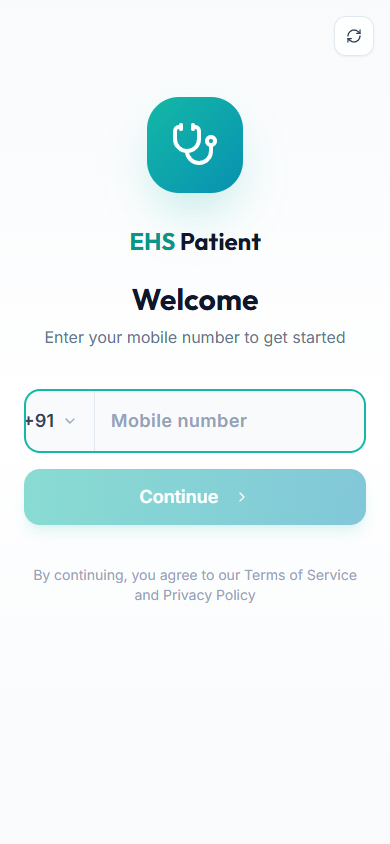
Patient service selection
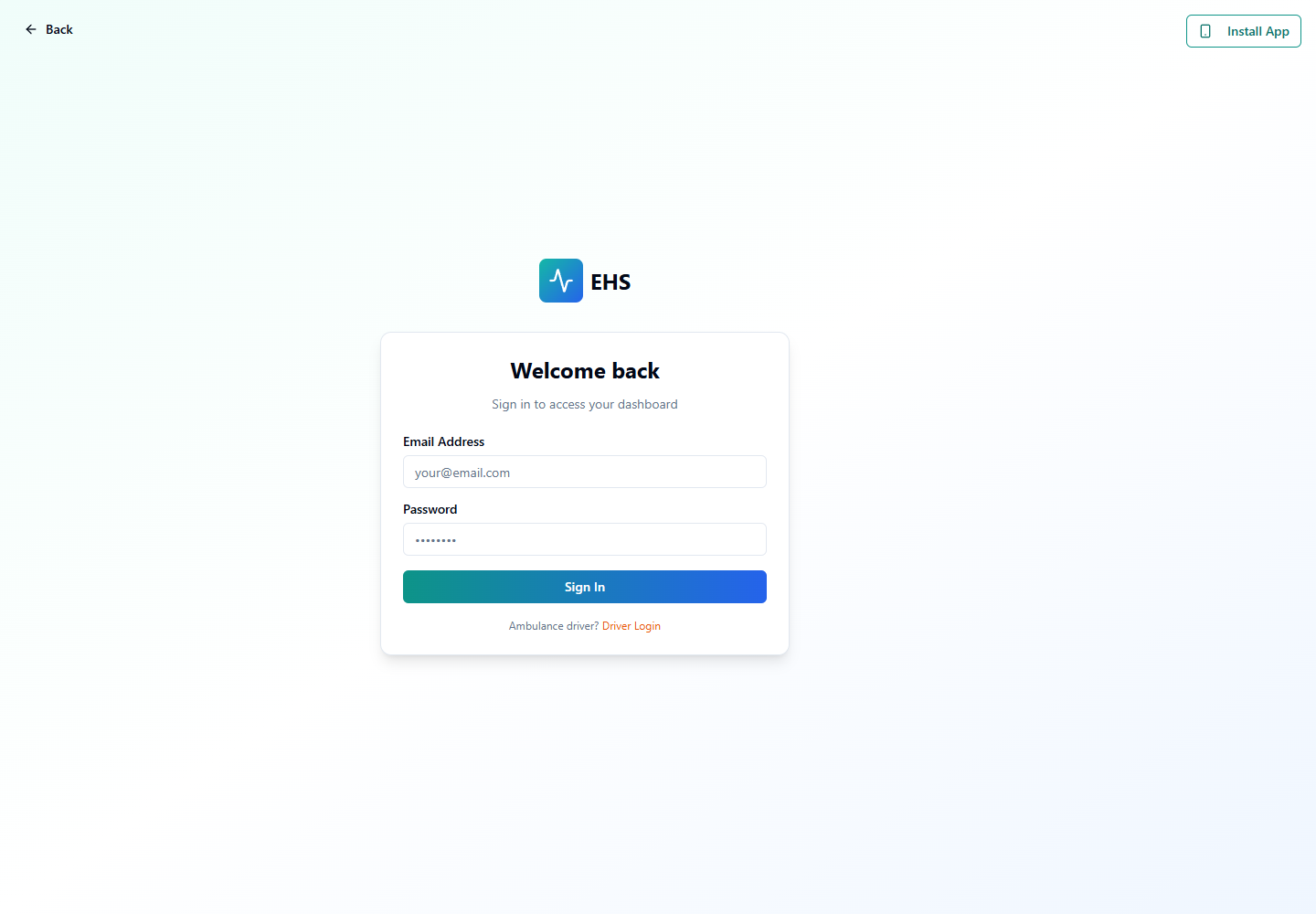
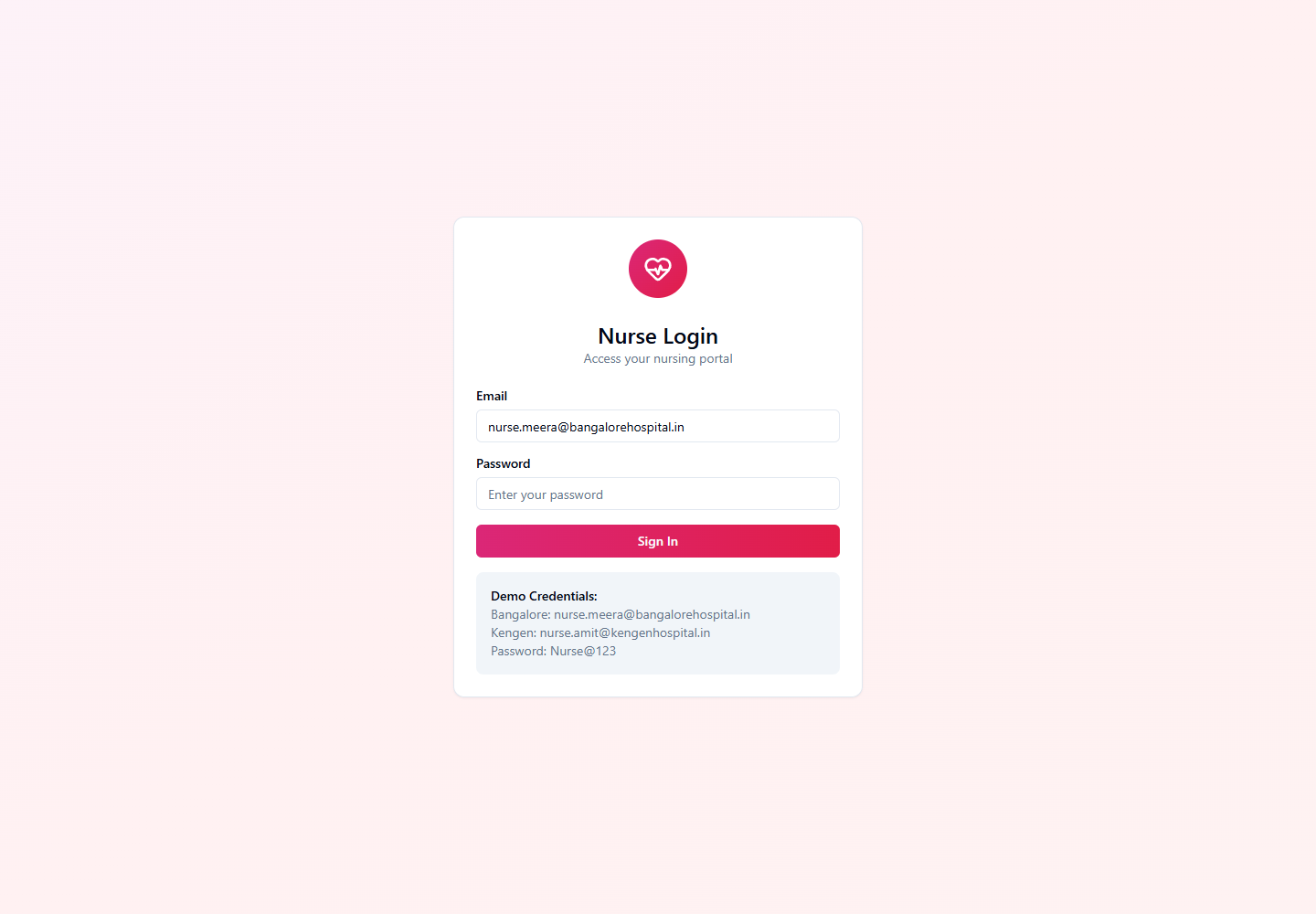
Nurse login screen
Nurse login
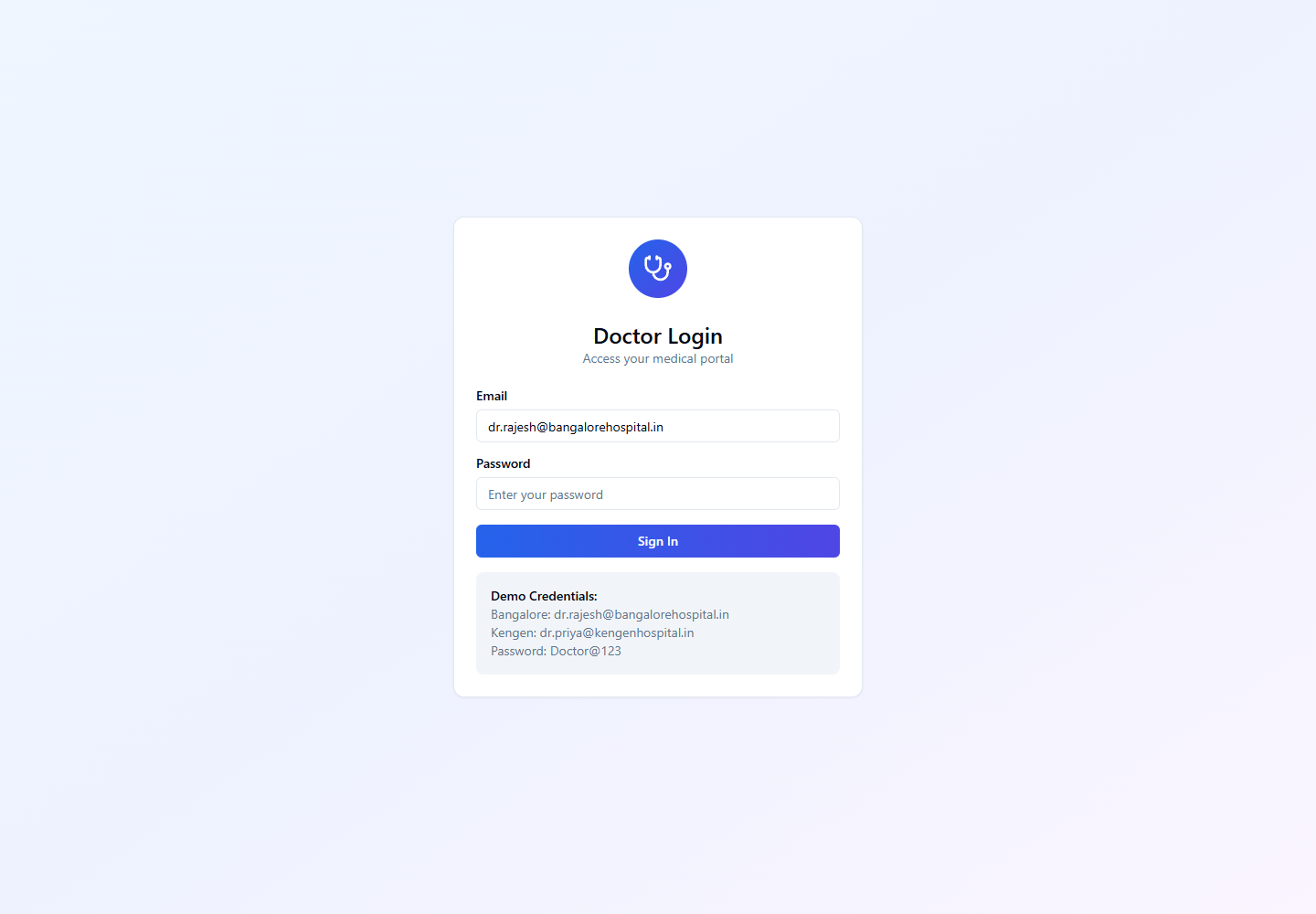
Doctor login screen
Doctor login

End-to-End Steps

  1. Patient opens /patient/book and chooses a medical service.
  2. Patient selects a doctor, appointment date, appointment time, consultation type, and hospital for in-person visits.
  3. System creates appointment with scheduled status and appointment number.
  4. Nurse sees unassigned appointment, assigns it to self, and starts or prepares the video call.
  5. Doctor joins from the appointment screen when invited or when the consultation is ready.
  6. Doctor completes notes, prescriptions, and final appointment status.

Testing Checks

  • Appointment cannot be created without doctor_id, date, time, and hospital_id for in-person visits.
  • Nurse assignment sets assigned_nurse_id and updates status correctly.
  • Meeting ID and participant tokens exist before patient, nurse, or doctor joins.
  • Patient receives appointment and call-start notifications.
Emergency Video Call Flow

Patient starts video emergency, triage nurse accepts, and doctor is invited when escalation is required.

#emergency-video
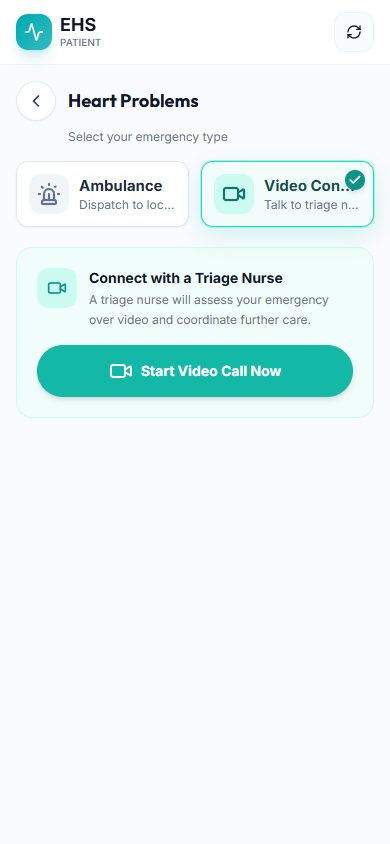
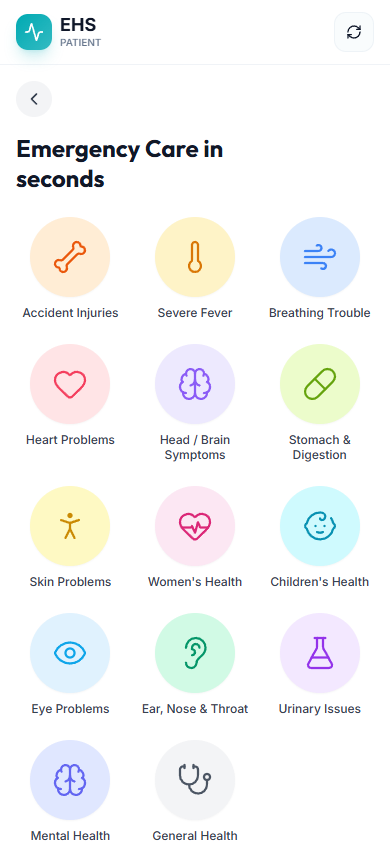
Patient emergency category screen
Patient emergency category
Patient emergency video flow
Patient video emergency
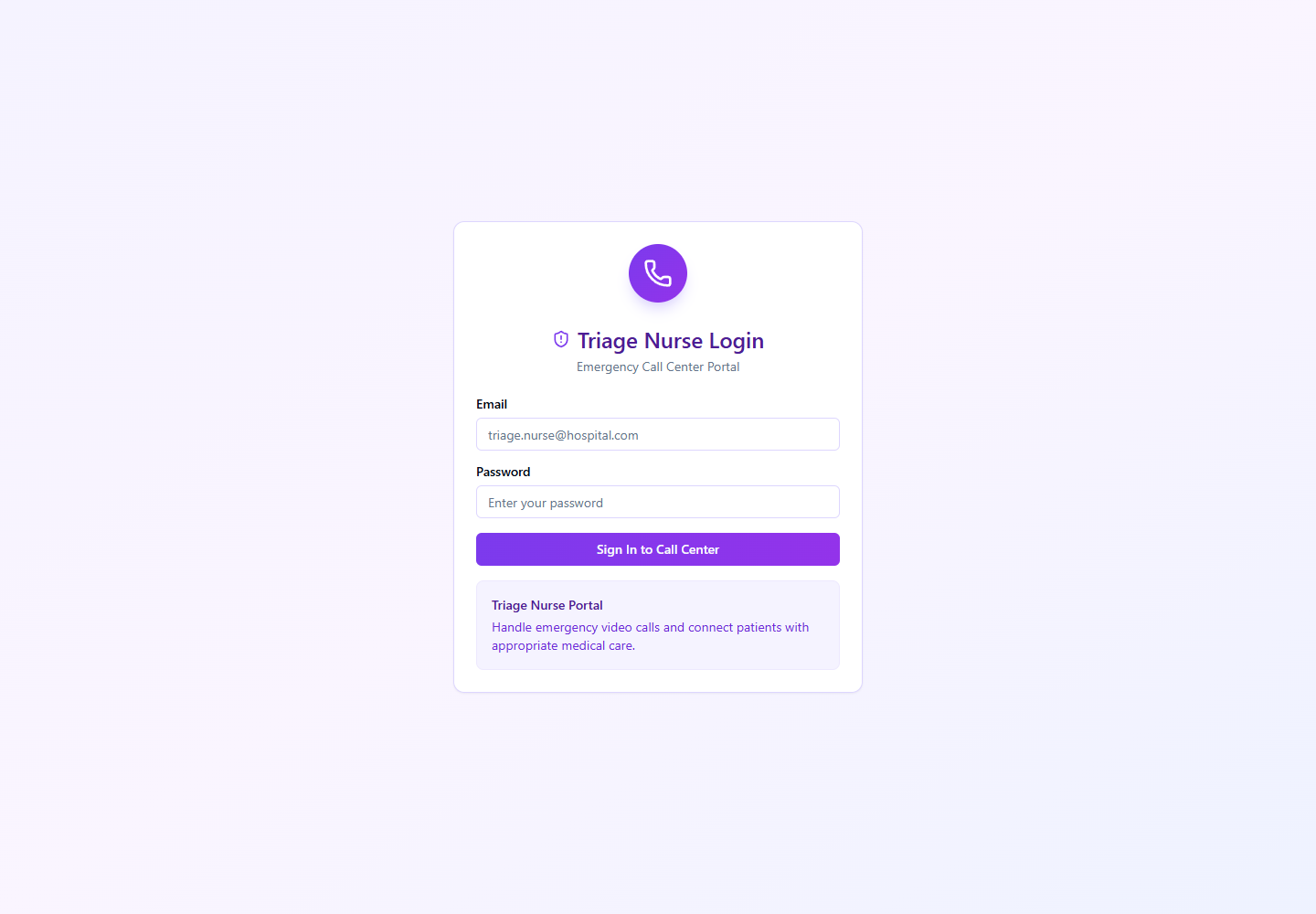
Triage nurse login screen
Triage nurse login

End-to-End Steps

  1. Patient opens Emergency and selects symptom category.
  2. Patient chooses Video Consult and starts the emergency video case.
  3. System creates or reuses active emergency case and places it in waiting queue.
  4. Triage Nurse goes online, accepts the case, and joins the video call.
  5. Triage Nurse records assessment and invites doctor if escalation is needed.
  6. Doctor joins, completes consultation, and triage or doctor closes the case.

Testing Checks

  • Patient cannot create duplicate active video emergency cases.
  • Triage nurse must have active profile and specialization access.
  • Call history records case number, duration, nurse, doctor, and completion status.
  • Doctor invite updates emergency case assignment and call participants.

Emergency Ambulance Booking Flow

Direct patient ambulance booking and staff-initiated ambulance request from emergency video, including dispatch criteria.

#emergency-ambulance
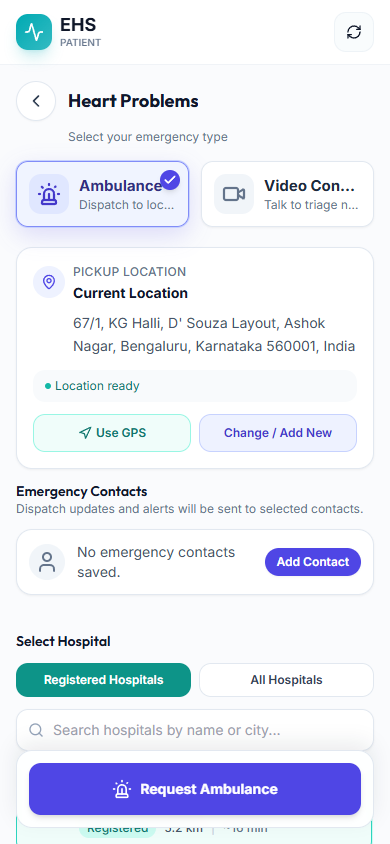
Patient ambulance branch
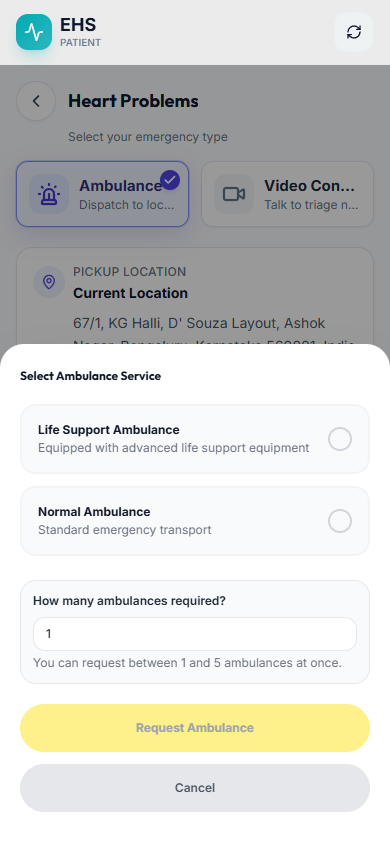
Ambulance type selection
Ambulance type sheet
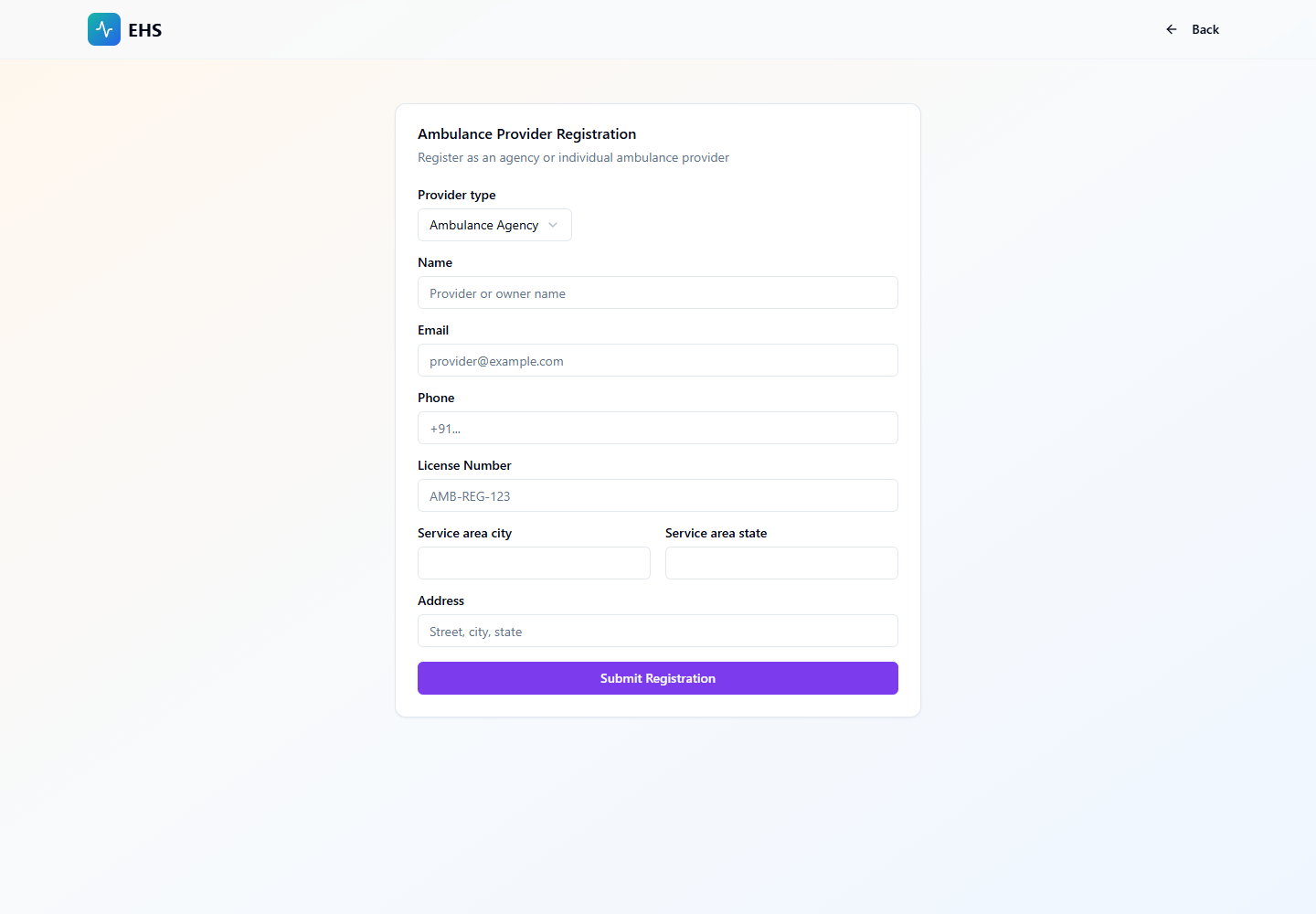
Ambulance provider registration
Ambulance provider onboarding

End-to-End Steps

  1. Patient opens Emergency, selects a symptom category, and chooses Ambulance.
  2. Patient confirms pickup location, hospital, ambulance type, and ambulance count.
  3. System creates ambulance_requests with requested status, OTP, patient and hospital coordinates, and requested_by patient.
  4. If staff requests ambulance from an active video emergency, request is linked to emergency_case_id and requested_by staff.
  5. Auto dispatch claims request, searches eligible drivers, offers one driver at a time, and waits for acceptance.
  6. Driver accepts, trip moves through accepted, en_route, arrived, patient_picked_up, to_hospital, at_hospital, and completed.

Testing Checks

  • Invalid ambulance_type is rejected.
  • Auto dispatch does not offer life-support request to normal ambulance.
  • Driver without fresh location is excluded.
  • Manual assignment rejects inactive driver, missing ambulance, or type mismatch.
  • Patient cannot cancel after patient_picked_up, to_hospital, at_hospital, or completed.

Dispatch Criteria

  • Patient pickup latitude and longitude are required; missing coordinates send the request to manual_assignment_required.
  • Driver must be active, online, available, and linked to an ambulance.
  • Driver location must be fresh within the configured freshness window, currently 10 minutes.
  • Ambulance must be active and type-compatible: normal requests go to normal ambulance; life-support requests go to life-support ambulance.
  • Provider must be active and either accept external dispatch or match the hospital/provider scope.
  • Candidate must be within dispatch radius. Defaults expand by attempt, with default radius controls around 40 km unless configuration changes.
  • Previously offered, declined, expired, or exhausted drivers are skipped for the same request.
  • Hospital-provider matches are preferred when eligible, then nearest compatible driver is selected.
  • Each offer has a 30-second acceptance window before rotating to the next eligible driver.
  • Manual assignment is required when no compatible driver is found, coordinates are missing, attempts are exhausted, or dispatch reaches max attempts.

Hospital & Ambulance Agency Onboarding Lifecycle

Organization onboarding lifecycle from frontend registration to Super Admin approval, first login, staff setup, and ambulance unit management.

#hospital-ambulance-onboarding-lifecycle
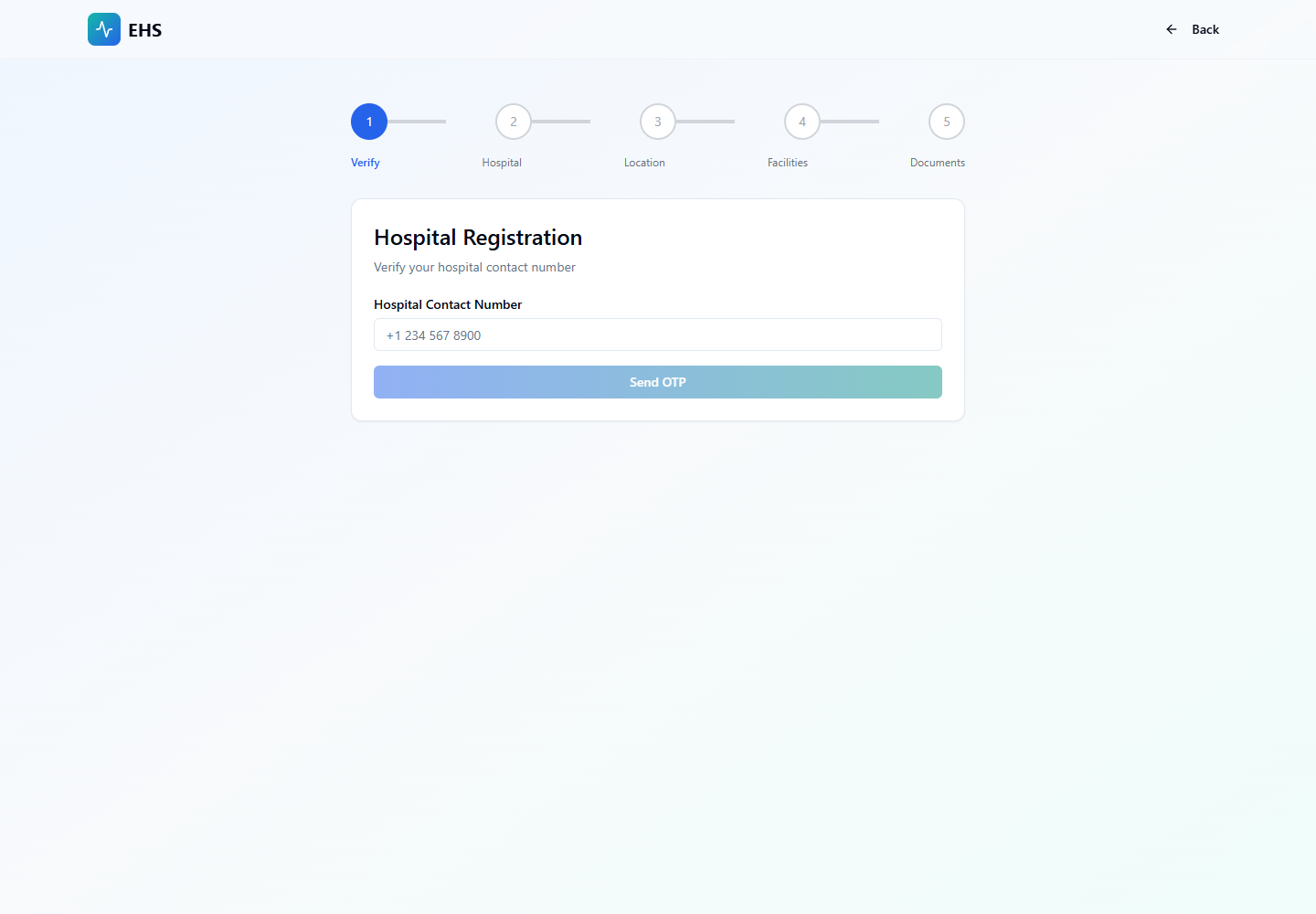
Hospital registration form
Hospital registration
Ambulance registration form
Ambulance provider registration
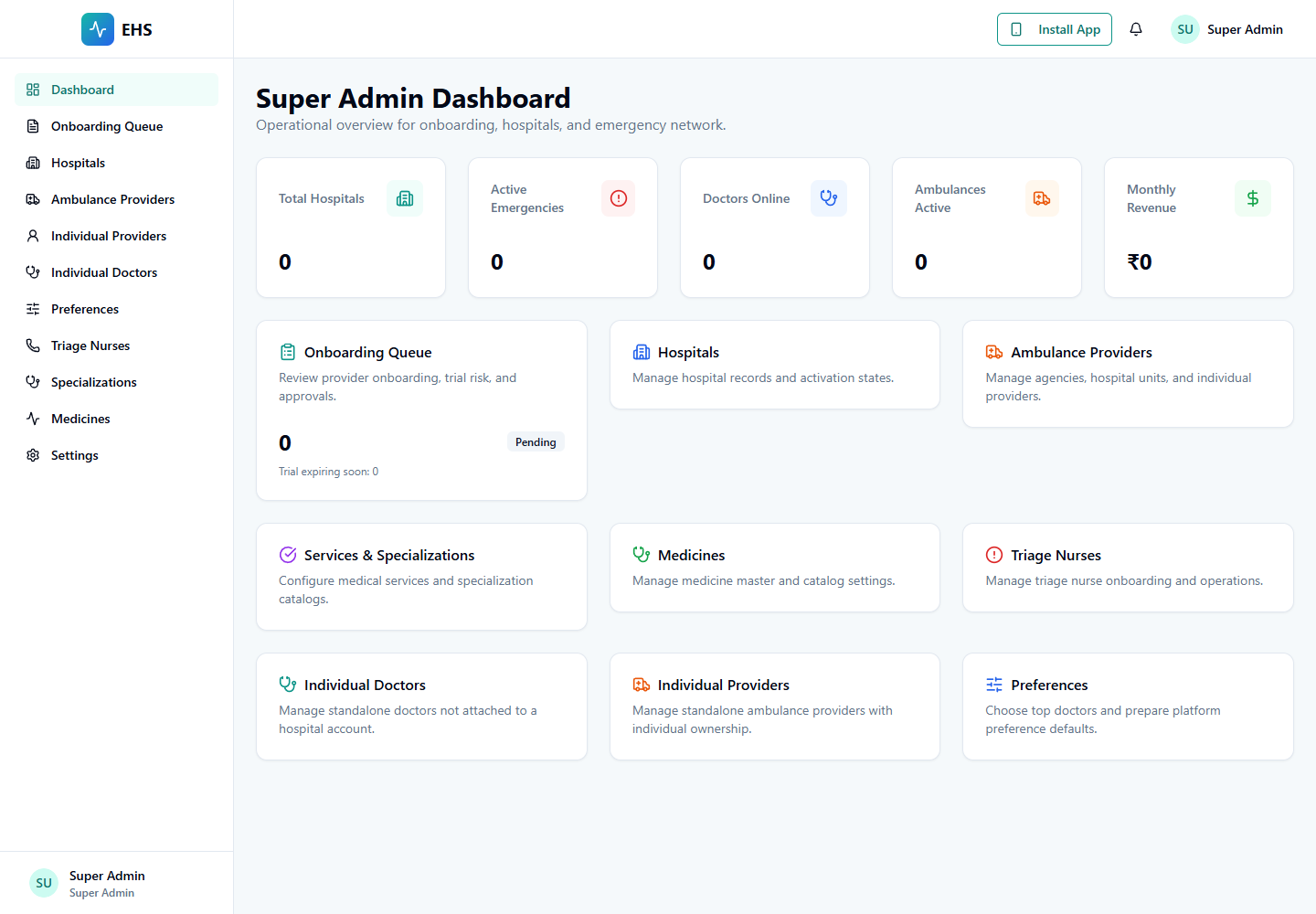
Super Admin approval dashboard
Super Admin dashboard

End-to-End Steps

  1. Hospital or Ambulance Agency opens the provider registration page and submits legal, contact, admin, and compliance details.
  2. System stores onboarding application with submitted status and generates reference ID for tracking.
  3. Super Admin reviews documents, verifies details, and moves status through under_review to approved or rejected.
  4. On approval, system provisions organization admin account and shares login URL with a temporary default password.
  5. Organization admin logs in, completes forced password change, and optionally enrolls MFA before entering the dashboard.
  6. Hospital Admin configures doctors and nurses; Ambulance Agency Admin configures ambulance units, crew assignment, and operational status.
  7. Operational audit trail captures every review decision, account status change, and post-approval admin action.

Testing Checks

  • Submitted registrations create onboarding records with trackable reference ID.
  • Approved organizations receive provisioned admin access with temporary password reset requirement.
  • Rejected applications retain reviewer reason and resubmission guidance.
  • Hospital admin can create doctors and nurses only within own organization scope.
  • Ambulance agency admin can create and manage ambulance units with status lifecycle controls.
  • Approval, rejection, suspension, and first-login completion events are audit-logged.

Super Admin Accept Flow

Provider onboarding approval flow for hospitals, doctors, and ambulance providers.

#super-admin-accept
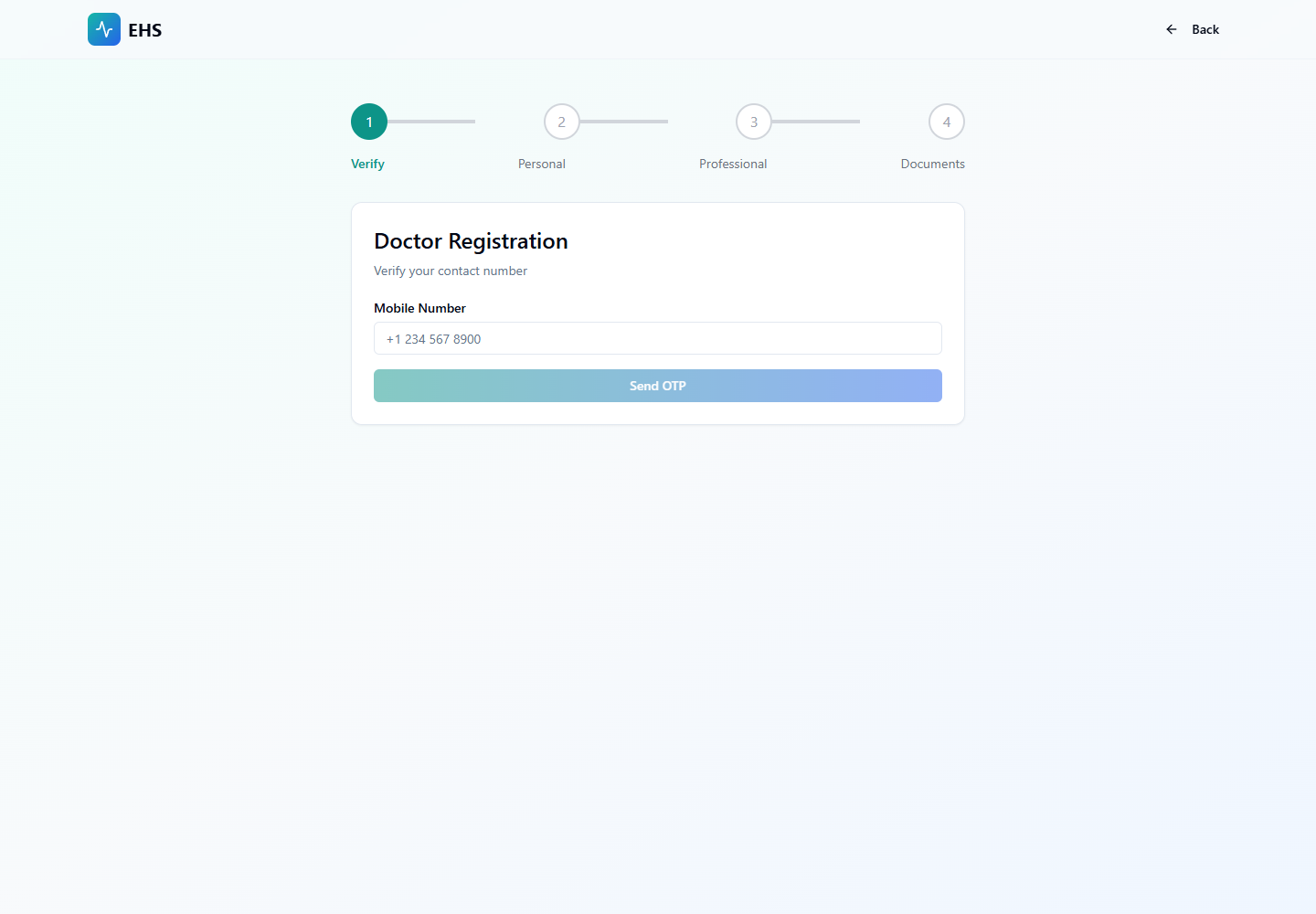
Hospital registration
Doctor registration
Doctor registration
Super Admin dashboard

End-to-End Steps

  1. Applicant submits hospital, doctor, ambulance agency, or individual provider registration.
  2. System creates provider_onboarding_applications with submitted status, trial_status active, and 14-day trial window.
  3. Super Admin opens Onboarding Queue and filters by entity, status, trial risk, or search term.
  4. Super Admin reviews documents, applicant metadata, and risk indicators.
  5. Approve creates or reuses auth user, writes user_profile role, creates provider record, creates pricing config, and writes audit log.
  6. Reject stores rejection reason; request changes stores reviewer notes; suspend blocks active access.

Testing Checks

  • Approval creates expected role profile and provider relation.
  • Temporary password is available for newly provisioned accounts where applicable.
  • Reject, request changes, suspend, and activate review states are visible and audited.
  • Trial and pricing fields remain consistent after approval.