Role User Guide
Ambulance Admin Web Guide
Ambulance provider onboarding, fleet, drivers, shifts, dispatch queue, and manual assignment.
Login URL
/login
Start URL
/ambulance/dashboard
Onboarding and Login Flow
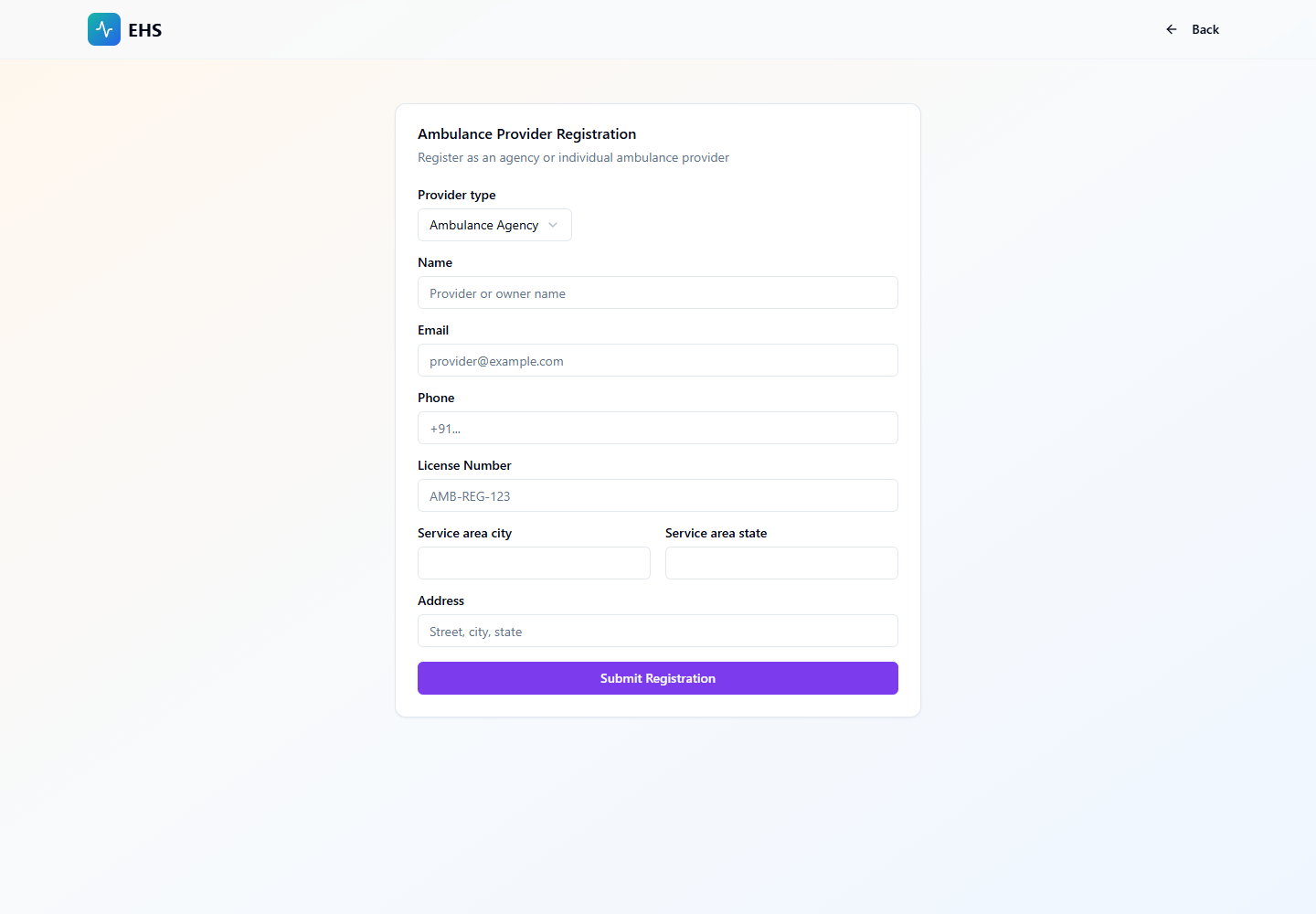
- Ambulance agency or individual provider submits registration from /register/ambulance.
- Super Admin approves the provider and account access.
- Ambulance Admin logs in from /login.
- Provider sets up ambulances, drivers, availability, and shifts.
Quick Start
- Login from the common web login screen.
- Open Dashboard for fleet and driver readiness.
- Use Fleet and Drivers before accepting dispatch requests.
- Use Requests for active, manual, and dispatch-required cases.
Menu Navigation Hierarchy
Follow this order during training so users understand the dashboard before action-heavy screens.
1Dashboard
2Fleet
3Drivers
4Requests
5Shifts
Each Module: Navigation and Actions
| Navigation | Function | Primary Actions |
|---|---|---|
| Dashboard | Dispatch readiness overview for fleet, drivers, and shifts. |
|
| Fleet | Ambulance vehicle records and activation state. |
|
| Drivers | Driver roster, vehicle assignment, and online readiness. |
|
| Requests | Ambulance request queue and manual dispatch operation. |
|
Action Screens with Screenshots
Step 1: Ambulance Provider Registration
Provider onboarding captures agency or individual provider details before Super Admin approval.
/register/ambulance
Choose provider type
Enter license
Enter service city/state
Submit registration
Step 2: Dispatch Request Source
Requests originate from patient emergency ambulance flow or staff ambulance request from a video emergency.
/patient/emergency/heart-problems
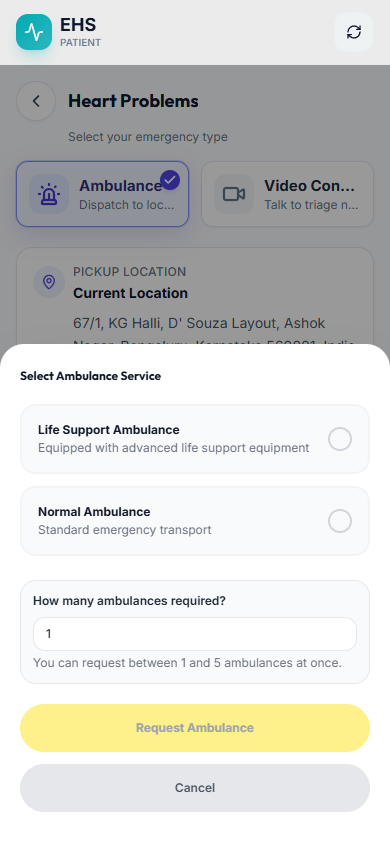
Receive request
Match ambulance type
Offer driver
Fallback to manual assignment
End-to-End Testing Checks
- Enter the role email and password on the correct login screen.
- Confirm the redirected dashboard matches the user role.
- Verify the side navigation only shows modules allowed for that role.
- Log out and verify the browser returns to the login page.
- Provider cannot dispatch until active and accepting dispatch.
- Driver must be active, online, available, location fresh, and assigned to a compatible ambulance.
- Manual assignment rejects inactive driver, missing ambulance, or type mismatch.