Role User Guide
Super Admin Web Guide
Platform governance for onboarding, hospitals, providers, triage nurses, services, medicines, and settings.
Login URL
/login
Start URL
/super-admin/dashboard
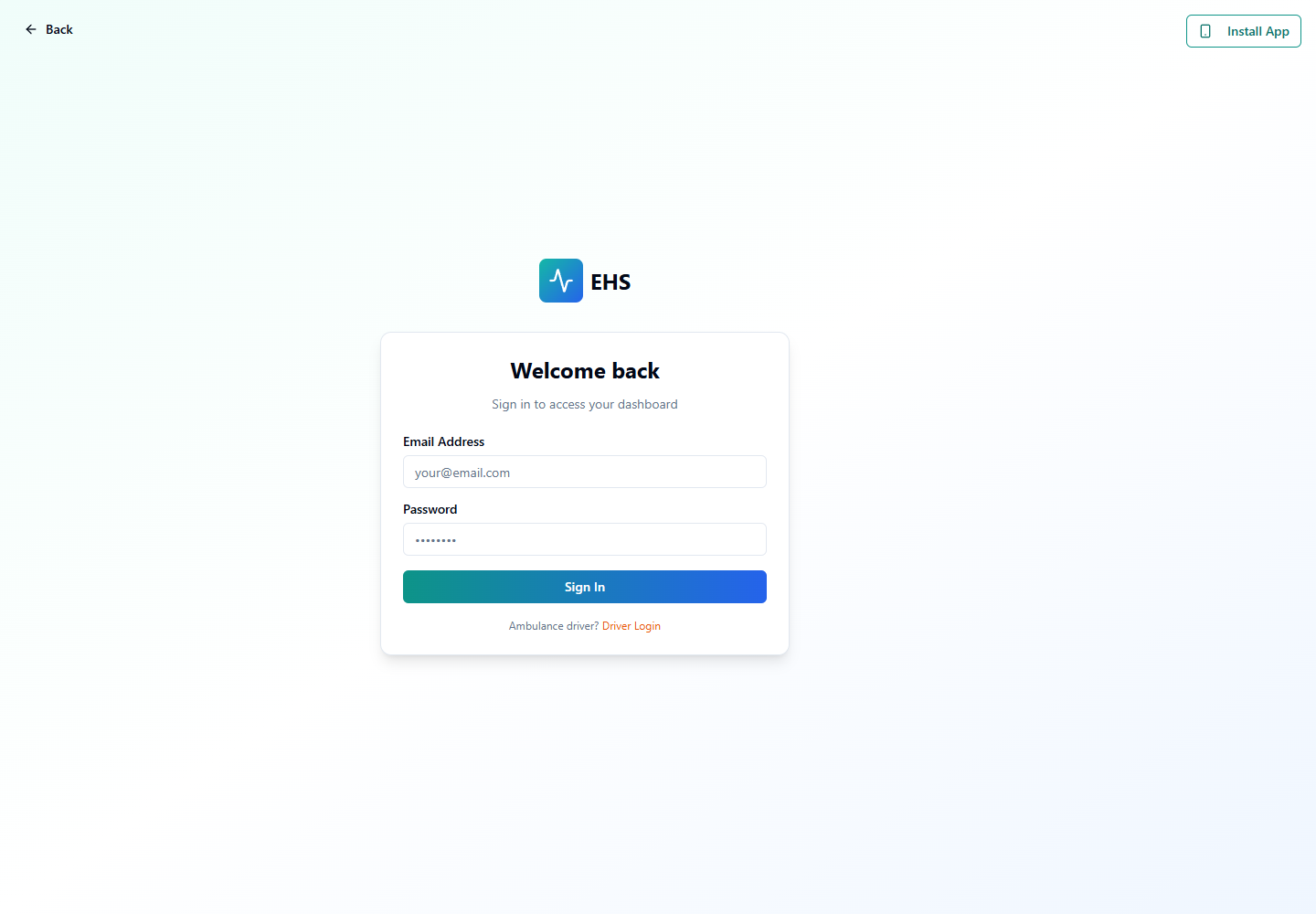
Onboarding and Login Flow
- Super Admin account is provisioned by the platform owner.
- Login from /login and confirm the Super Admin dashboard opens.
- Review onboarding queue for hospitals, doctors, ambulance agencies, and individual providers.
- Approve, reject, request changes, suspend, or reactivate applications.
Quick Start
- Login from the common web login screen.
- Open Dashboard for global KPIs and action cards.
- Open Onboarding Queue to review provider submissions.
- Use master modules for hospitals, providers, triage nurses, services, medicines, and platform settings.
Menu Navigation Hierarchy
Follow this order during training so users understand the dashboard before action-heavy screens.
1Dashboard
2Onboarding Queue
3Hospitals
4Ambulance Providers
5Individual Providers
6Individual Doctors
7Preferences
8Triage Nurses
9Specializations
10Medicines
11Settings
Each Module: Navigation and Actions
| Navigation | Function | Primary Actions |
|---|---|---|
| Dashboard | Global platform overview for hospitals, emergencies, doctors, ambulances, and revenue. |
|
| Onboarding Queue | Review and decide provider applications. |
|
| Hospitals | Manage registered hospitals and activation state. |
|
| Ambulance Providers | Manage agency, hospital unit, and individual ambulance providers. |
|
| Triage Nurses | Manage emergency call center staff. |
|
| Specializations and Medicines | Maintain master catalogs used by booking, prescriptions, and routing. |
|
Action Screens with Screenshots
Step 1: Super Admin Login
Super Admin uses the common login and lands on the global dashboard.
/login
Enter Super Admin email
Enter password
Submit
Confirm /super-admin/dashboard
Step 2: Global Dashboard
The dashboard exposes platform modules and global action cards for operational control.
/super-admin/dashboard
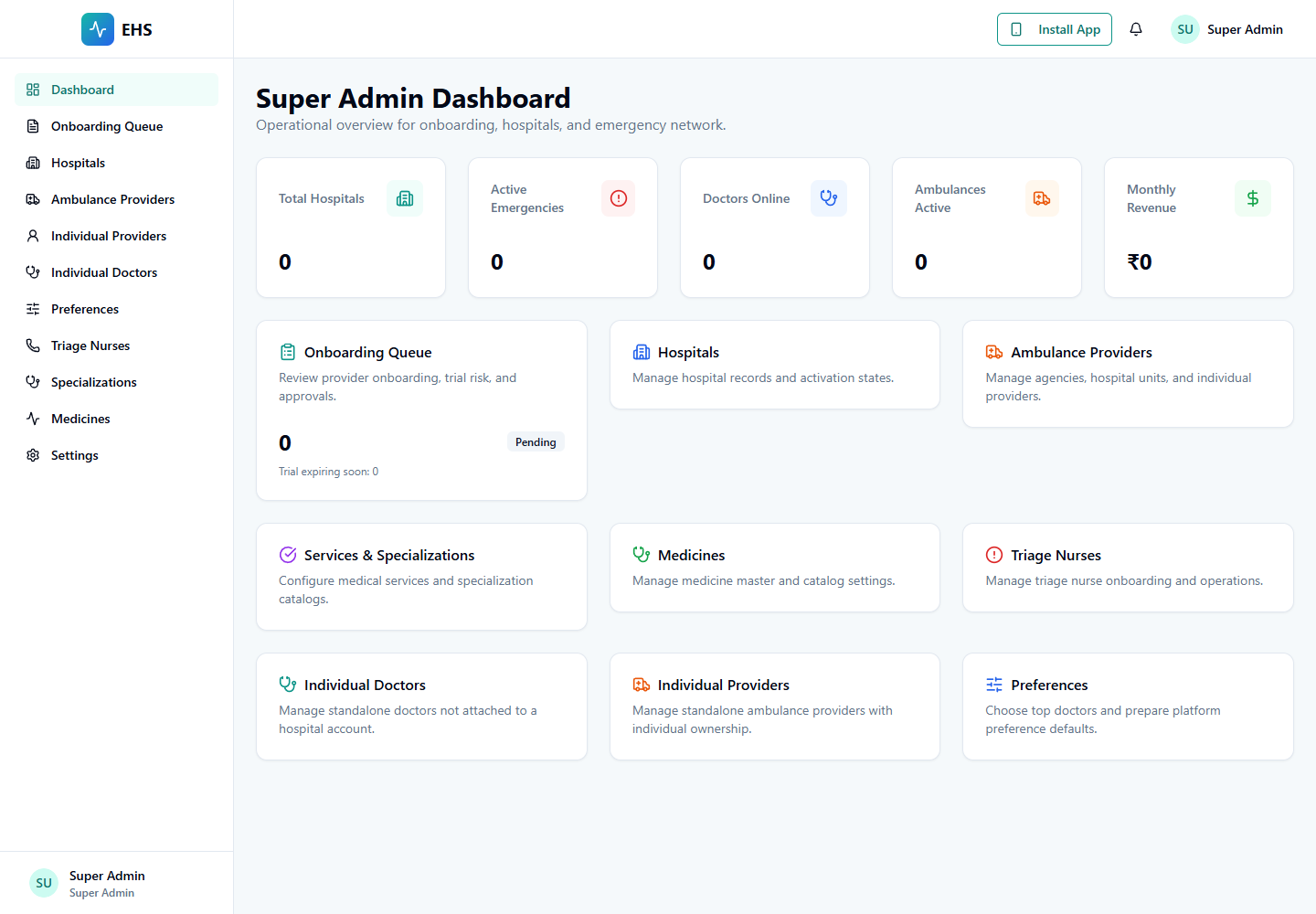
Open onboarding
Open hospitals
Open providers
Open service catalogs
Step 3: Super Admin Accept Flow
Registration submissions are reviewed from the queue. Approval creates or reuses users, role profile, provider record, pricing, and audit log.
/super-admin/onboarding
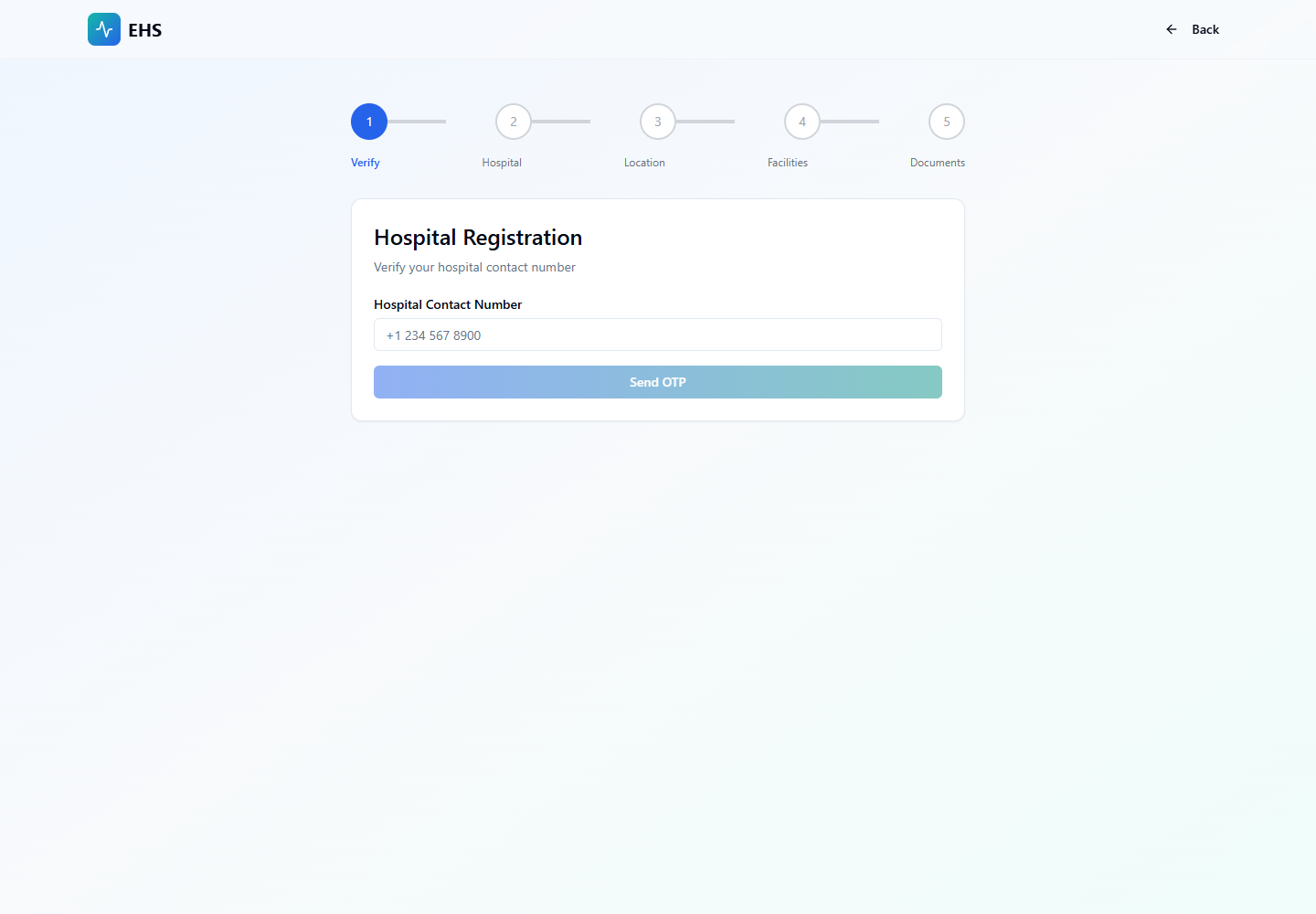
Open application
Review documents
Set commission
Approve or reject
Confirm audit
End-to-End Testing Checks
- Enter the role email and password on the correct login screen.
- Confirm the redirected dashboard matches the user role.
- Verify the side navigation only shows modules allowed for that role.
- Log out and verify the browser returns to the login page.
- Approval provisions user_profile with correct role and provider relation.
- Rejected application stores rejection reason.
- Pricing config uses default ambulance/video commission unless changed.
- Audit log records submit, approve, reject, request changes, and suspension actions.